
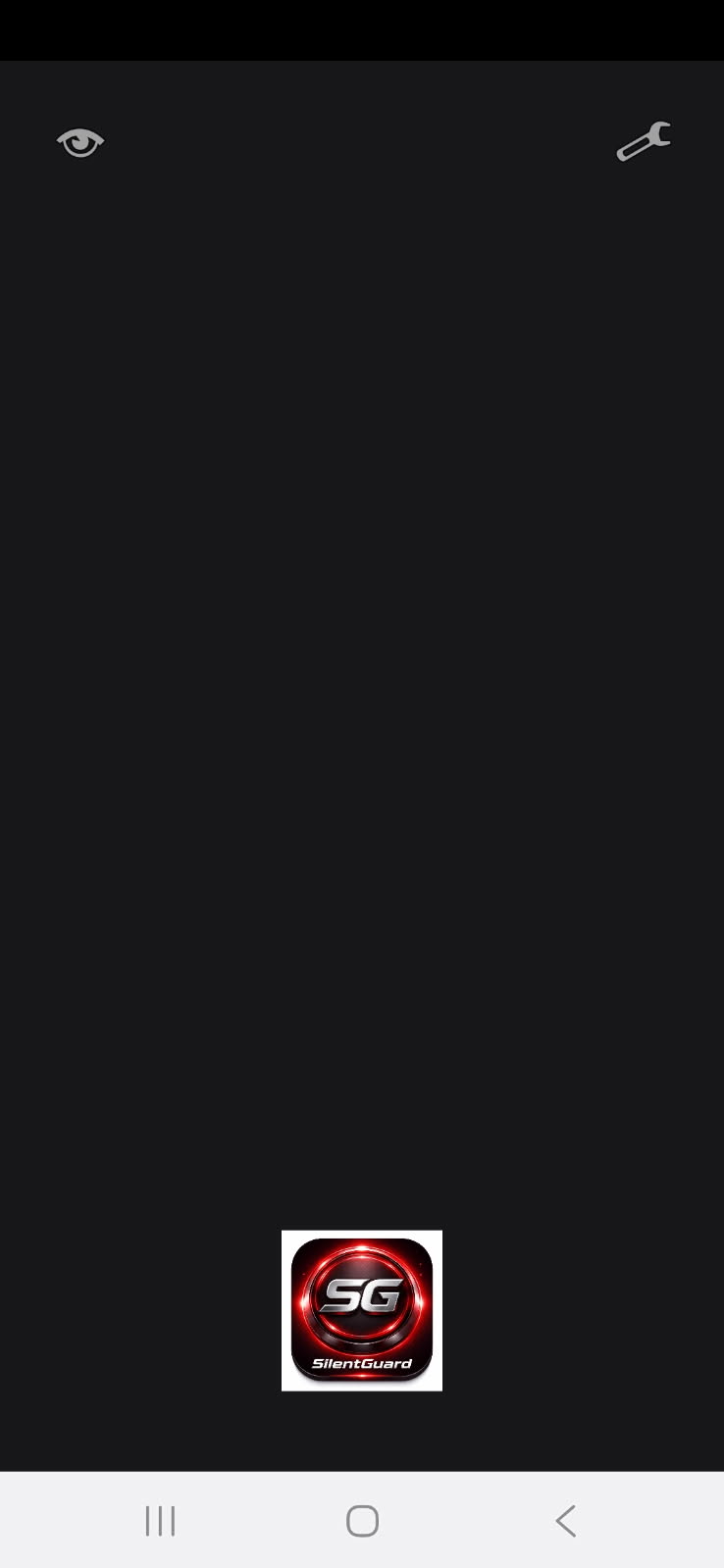
Open the RecordNow app and tap the wrench icon in the upper-right corner to access the configuration panel.
Here you can configure voice triggers, shake detection, recording length, and alert notifications.
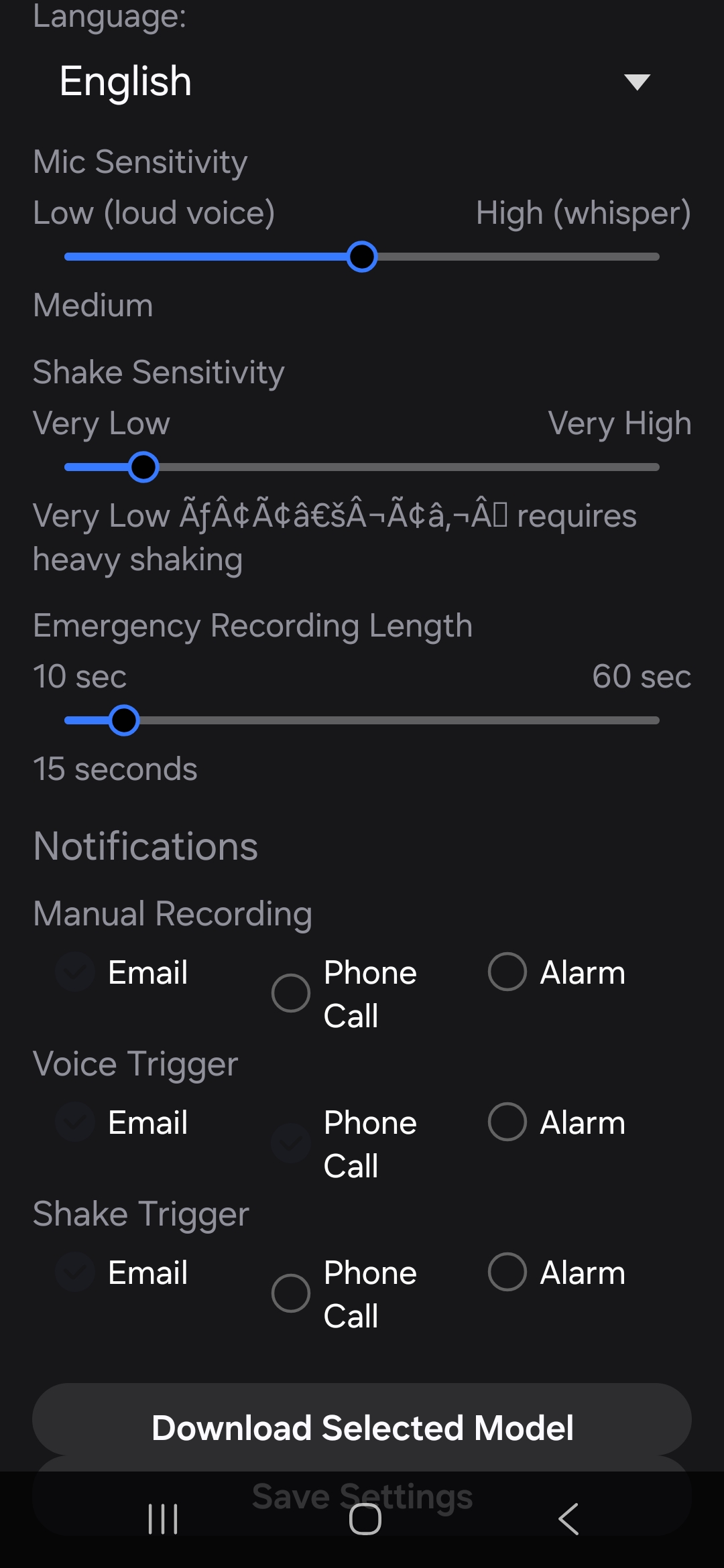
This spoken phrase activates emergency recording. The example shown uses code red.
Choose a phrase that is easy for you to remember but unlikely to be spoken accidentally.
Select the language used for voice recognition.
Controls how easily sudden motion activates recording.
Shorter clips upload faster. Longer clips capture more evidence.
Notifications can be configured for:
Each trigger can send:
This is the sound that will play on your device during an emergency alert.
Emergency alerts are sent to the trusted contacts configured in your SilentGuard dashboard.
Sound alarm plays on your device only and is not sent to anyone.
Manual recordings are not sent to emergency contacts. They are stored securely in your account for your own access.
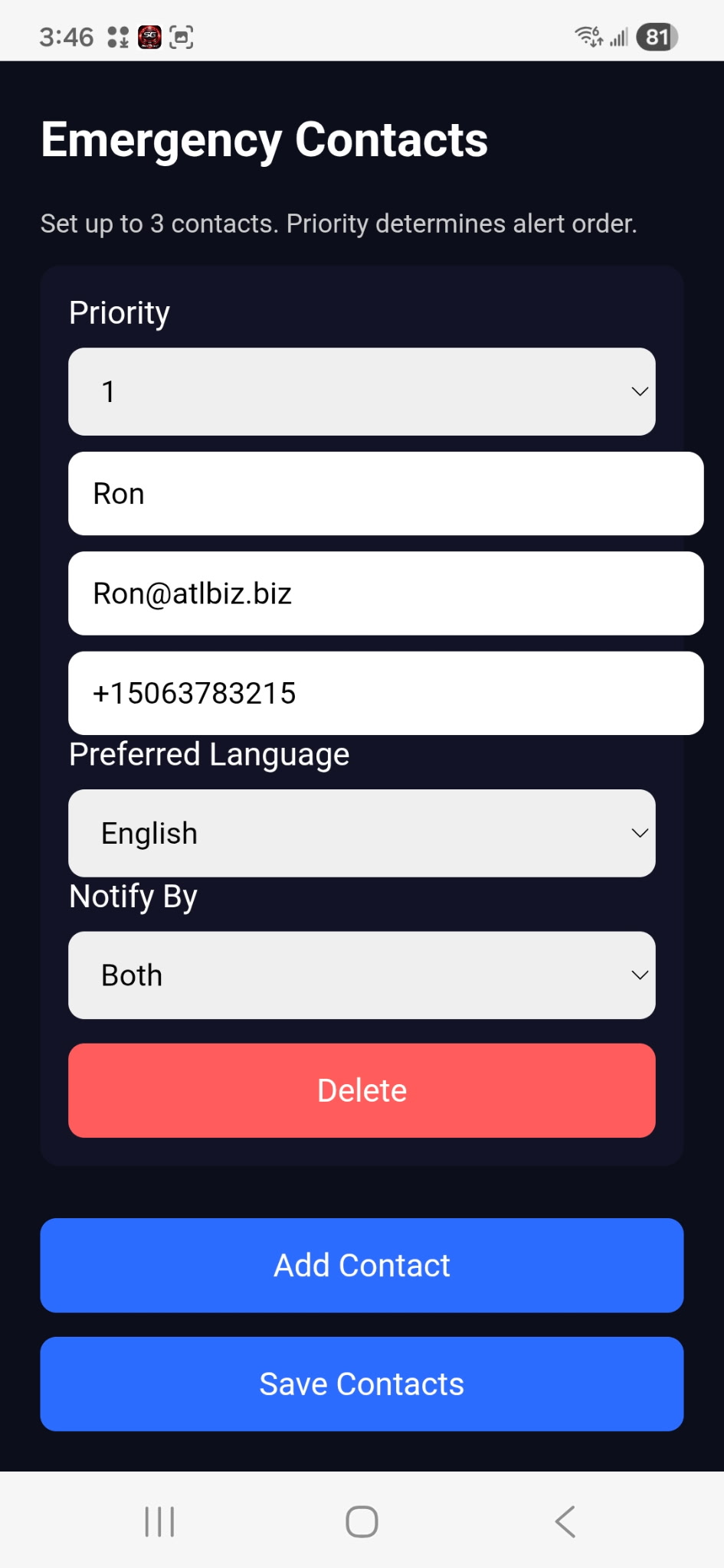
Priority, from 1 to 3, determines the priority call sequence.
Click on the white window below Preferred Language to see the dropdown menu,
select your language and then press Done.
(If your preferred language is not shown, please let us know and we will add it.)
Click on the white window below Notify by to select the method of notification.
(Please keep in mind, your selection settings will override or work in conjunction with this setting.)
Then click Done.
You can add as many as 3 emergency contacts.
When done click Save Settings.
Always press Save after changes.
To ensure RecordNow can hear your voice command at any moment, you must "Lock" it in your phone’s memory. This prevents the system from closing the app to save battery and ensures it stays active in the background.
Open Recent Apps
Tap the Recents button (|||) or swipe up and hold.
Access the Menu
Tap the app icon at the top.
Activate the Lock
Select "Keep open".
Confirm the Padlock
Padlock icon appears.
Press SG button to start/stop recording.